
Blueprint – 01. Estimation / Tendering
General Glossary
| No. | Term | Explanation |
| 1 | BoQ | Bill of Quantities |
| 2 | ERP | Enterprise Resource Planning System |
| 3 | GCC | General Conditions of Contract |
| 4 | SCC | Special Conditions of Contract |
| 5 | DGN (Bentley) | Designs |
| 6 | DWG (AutoCAD) | Drawing |
| 7 | WBS | Work Breakdown Structure |
| 8 | RFQ | Request for Quotation |
1 Importing BoQs from Excel into ProjectVIEW ERP
The process of importing BoQ Code lines into ProjectVIEW ERP Estimation and Tendering Module is initiated by getting from the End-Client (The Tendering Authority) the BoQ Excel as part of the Tender Documents (General Conditions Contract, Special Conditions of Contract, Designs, Specifications).
This Excel file usually includes more on than TAB (Sheet) grouping the construction sections of the project along with the BOQ Code lines that may include: numbers, letter of alphanumeric indexes. Each BoQ Code line also includes:
- the Description of the BOQ,
- the Unit measurement
- the requested Quantity by the Customer and
- and optionally the Selling Rate.
ProjectVIEW ERP supports 2 types of Excel templates:
1.1 Coding reference
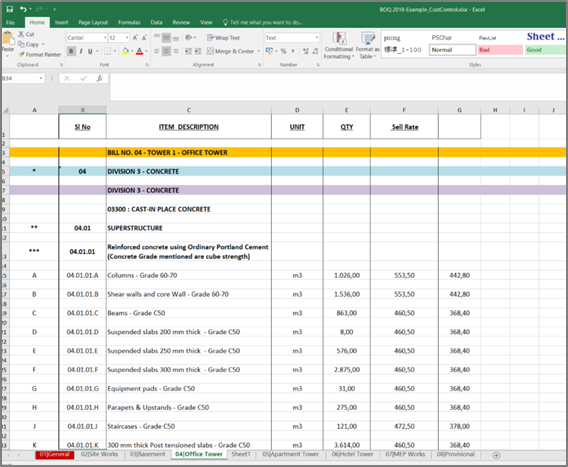
User should annotate the Excel sheet in order to create a template suitable for ProjectVIEW ERP to translate the BoQ lines into a tree-structure format and set the correct levels for each line.
Annotation is simply done by adding Stars “*” on each BoQ Code level in order to distinct and define each BoQ level’s Code line. This action helps to format any Excel no matter how complex or extensive it is, very fast and to import it into ProjectVIEW ERP having a ready tree-structure via “pseudo” coding all levels.
The expected result is a tree-structure layout of BoQ Code line where each BoQ is associated with a “parent” BoQ and all have a unique coding reference.
1 star for first level, 2 stars for second level, 3 stars for third, etc. Then analytical items will be annotated alphabetically (given by Customer).
1.2 Predefined numbering tree-structure
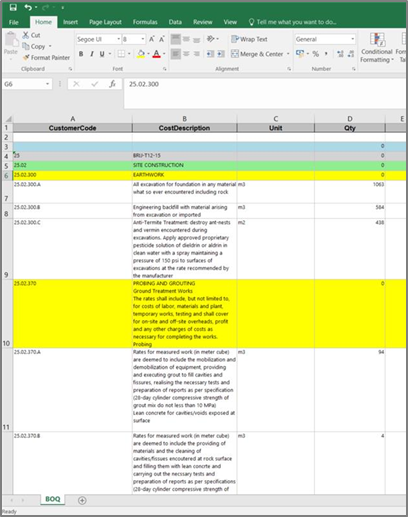
When BoQ Code lines are indexed with unique code numbers no further action is required and Excel can be imported into ProjectVIEW ERP without any annotation.
2 Importing Excel in ProjectVIEW ERP
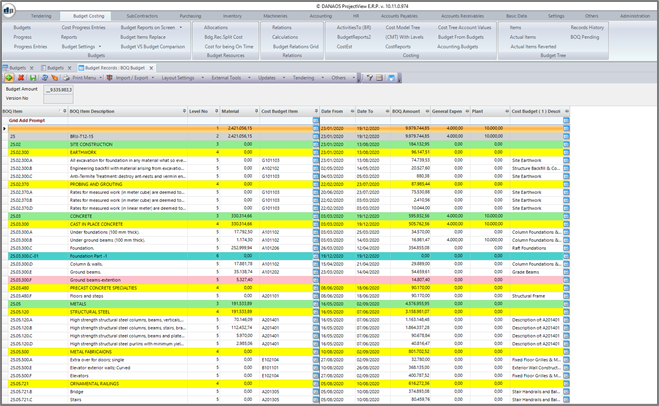
By importing the annotated Excel (.xls) into ProjectVIEW ERP, tree-structure layout levels are shown in a colourful format in order to ease and facilitate the process of resources association from which User can reveal the initial Budget.
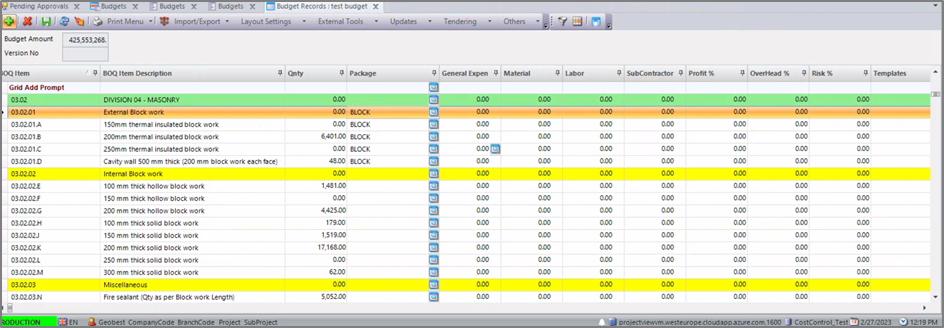
Although the screen has plenty of fields, the minimum number of resources that are required to setup the Budget (Project Baseline) are 5, as below:
- Material
- Labour
- Machineries
- Subcontractors
- General Expenses
However, it has to be noted that ProjectVIEW ERP provides the flexibility to consider Resources beyond the standard, up to ten (10). As an example, 5 more extra User-Define fields are available and user can associate other Resources’ Costs if needed (tools, scaffolding, transportation etc)
The “Date From” and “Date To” are also important for each BoQ line as they define the Early Start and the Early Finish of each BoQ based on which User can create (beyond standard Scheduling) the predecessors and the successors of the tree-structure BoQ layout, similarly to WBS.
3 Assigning Resources Manually
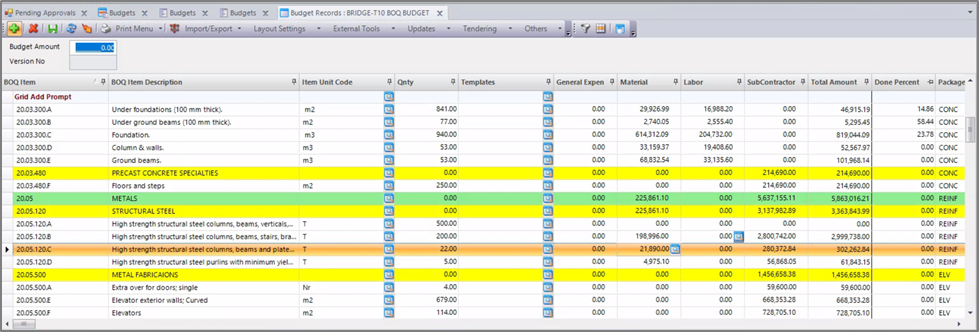
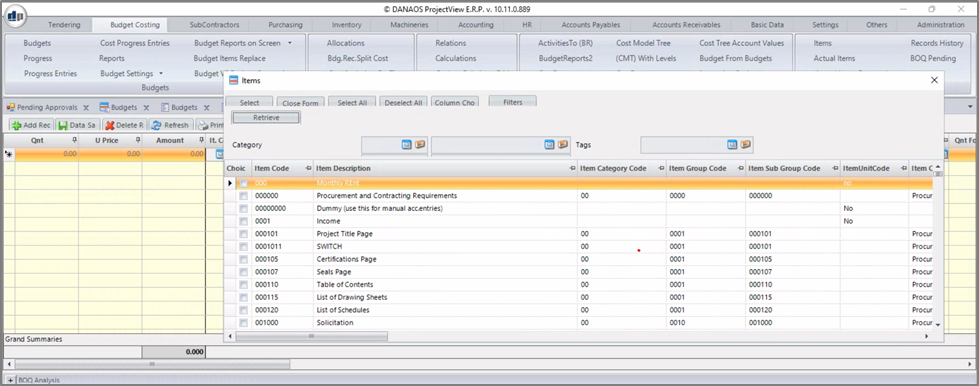
Adding Resources to each BoQ Line reveals the Budget Analysis. The process can be done manually by clicking on the blue button that appears next to each Resource category, thus, giving the User the option to select from each standard Resource category the appropriate Type:
- Labour à Speciality/Job title
- Machinery à Machinery Type
- Material à Item Code
- Subcontractors à Item Code
- General Expenses à Expense code
Along with the estimated quantities for the execution of Works.
Unit price and consequently Total Price can derive either as auto-calculated fields from the relative costs of historic data or manually by adding the estimated cost of Works.
An example showing how to assign material in one BOQ Line is shown below:
4 Assigning Divisions and Packages
ProjectVIEW ERP Estimation and Tendering Module allows several ways of grouping either via Divisions or via Packages each BoQ line in order to provide:
- Granular and secure access to Company Departments’ Users (e.g. Civil, MEP etc.) via Divisions and
- Facilitate the Procurement process by grouping similar Item Codes/Services and accelerate the Procurement Process via Packages
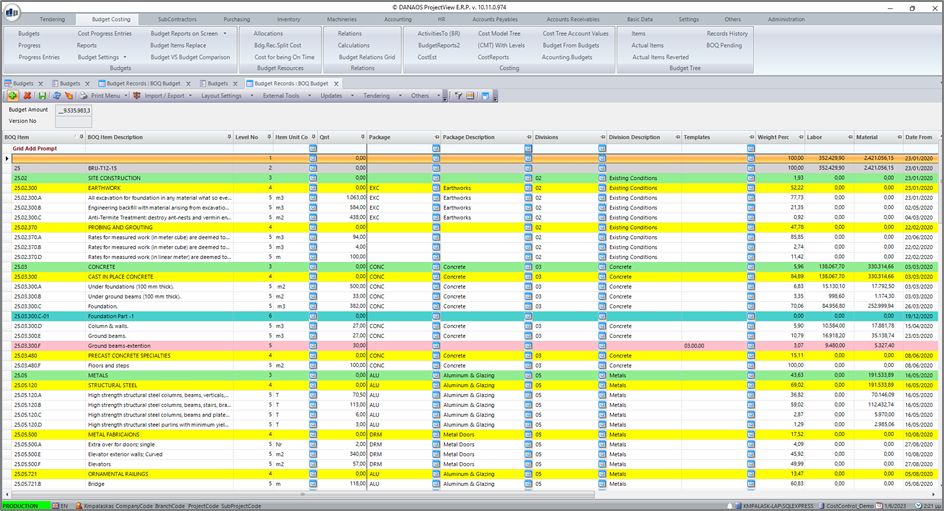
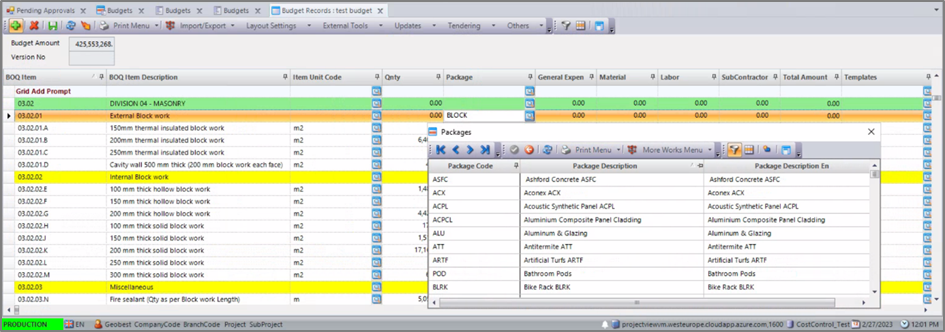
For example, all the BoQ items that are related to Package: Blockwork can be grouped and sent to a blockwork subcontractor/supplier.
Divisions can also be used to give special access to the users that belong to these divisions. Users based on their role and department can work in different Divisions at the same time impacting only the Project Budget associated to this Division.
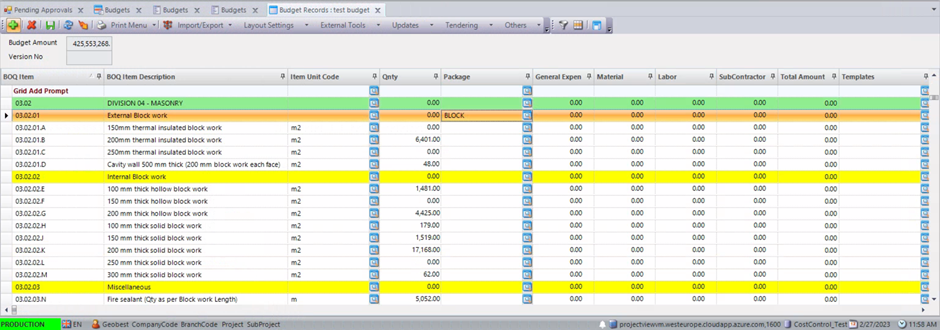
When the user double clicks the package on the BoQ parent-category the package is automatically assigned to all subcategories related to that parent category.
The same can be done for Divisions as well.
Package selected for Parent Group:
List of Packages:
4.1 Creating Productivity Templates (Cost Sheets – Recipes)
Templates are an essential part for formulating the BoQ quickly and efficiently. Templates are a way for users to create the perfect cost recipe for BoQ lines / jobs.
Example: Based on the Estimators experience 1m3 concrete needs a certain Recipe; cement, aggregates, mixer, etc… plus certain hours of labour per speciality/job title, or hours of machinery types etc. Users can create different Templates each time according to their needs.
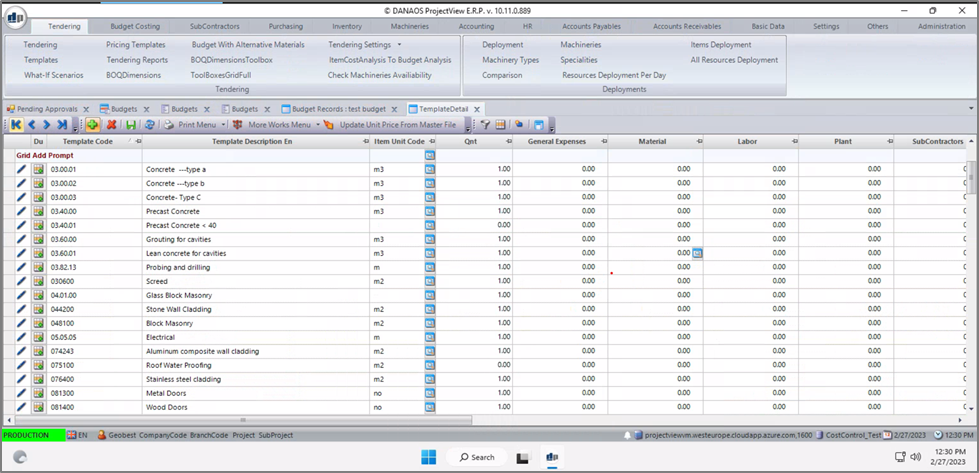
Edit the line items for Material, Labour, General Expenses, etc. by simply clicking on the blue button next to each Category Item.
Once selected, User can add items and edit the prices, quantities, etc. and adjust the Recipe accordingly.
4.2 Applying Templates
Once Users have created the Templates (Recipes), they can select the proper template for each BoQ line or for many BoQ lines together simply by double clicking the Template. Users can also apply templates quickly to lower level BoQ lines by assigning a template to a higher level one.
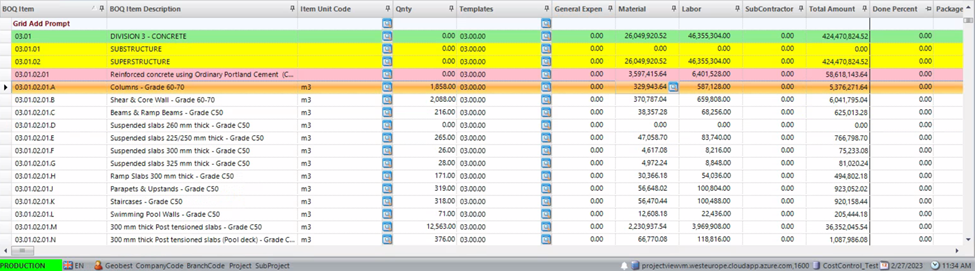
Once users have assigned the correct template (cost recipe) to each BOQ line, system will calculate automatically the total Quantities (QNTs) for Material , Labour, Machinery, General Expenses based on the required QNTy of the BOQ line .
Template assigned & Prices predefined:
5 Calculating Tendering Cost
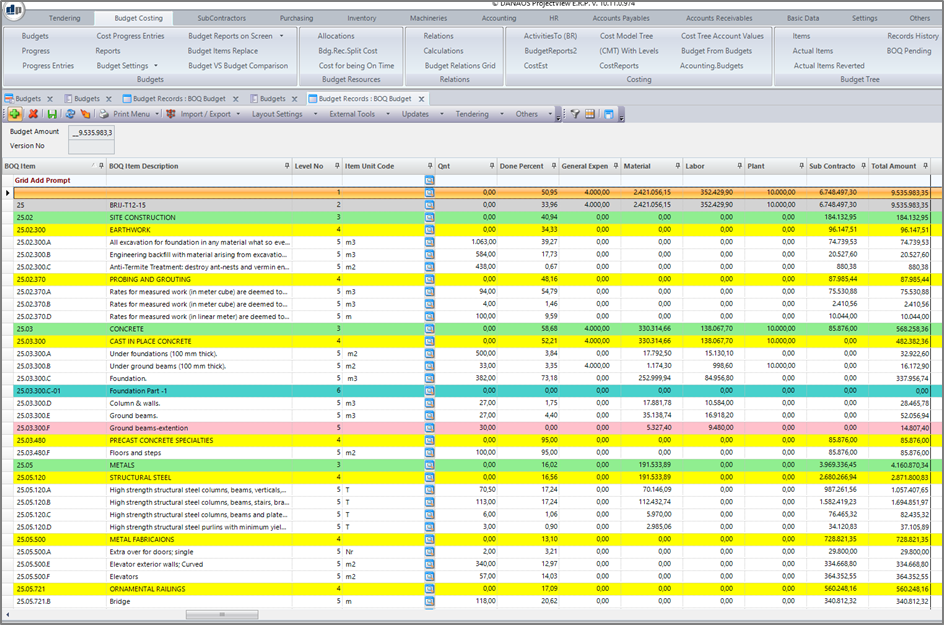
Once you have completed the tendering estimation for all the BoQ items you will then have the Total Costs per BoQ line in a column named “Total Amount”.
5.1 What if Scenarios
What if scenarios enable Users to scrutinize the BoQ costs and apply potential/probabilistic What-If, What-Will scenarios centrally on Item Categories in order to re-calculate automatically the BoQ Cost, without affecting the Actual which remains as it was.
In this tab (see in red below) the users will be able to see the full tree structure of the BoQ and edit prices, discounts, risks, overhead, and profit.
These modifications can be applied at the BoQ line level or at the analytical level where users choose which BoQ line they want to modify. They can see how these modifications affect the “big picture” of the BoQ and the margins that they want to reach.
By clicking on the “Save” button at the top of the tab screen User can affect the actual BoQ.
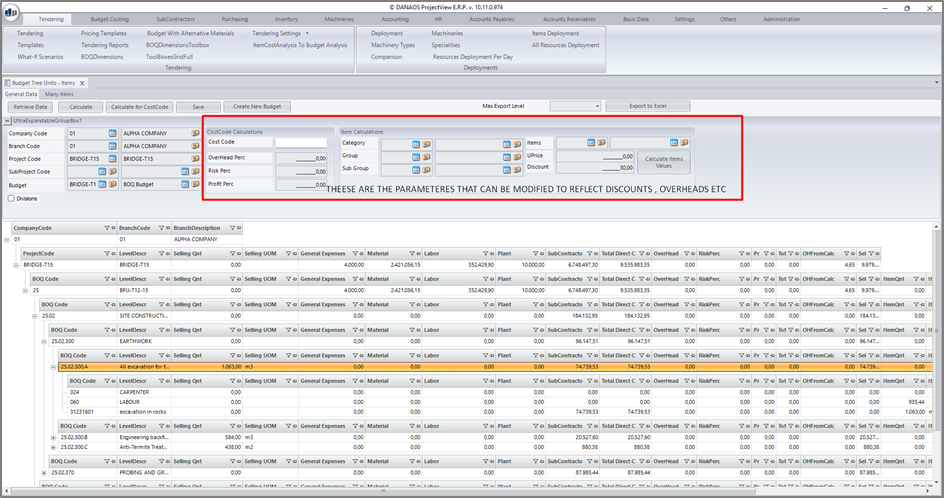
By clicking on the “create new budget” users can create another version of the Budget.
This way they can have different scenarios (the realistic scenario, the optimistic scenario).
There is no limit to the number of budgets that can be created by the users.
5.2 Update Tendering with Unit Price from Items Master File
During the creation of items in the “Inventory” Module Users are also able to select a default price for the item if it’s a stock item with not much variation to its price. For items that have a default price assigned, we can automatically apply this default price to the BoQ by clicking on “Update” at the top of the Budget Analysis tab, then navigating to “Update Unit Price from Masterfile” option.
5.3 Requesting Updated (Fresh) Prices from Suppliers via Procurement
From the Procurement module, User can solicit quotations via dynamic RFQs consisted from consolidated common Items that are assigned to BoQ Code lines.
Utilizing the Procurement Module, User can then update the prices of the BoQ’s from the prices of the Suppliers Quotations.
5.4 Update Tendering with Unit Prices from Commitment
User can also update Unit Prices from Commitments.
User can create Commitments (Agreements) with Suppliers for certain packages or groups of items of one or more projects, by simply clicking on “Update” at the top of the Budget screen and navigating to the “Update from Commitment” option.
5.5 Applying Overheads, Risk, Profit
Once User has completed filing all the items and setup the Dry Cost of the BoQ’s by associating General expenses, Materials, Labour, Machinery, Plant, etc., the next step is to apply the Risk, Profit, and Overhead.
These are added manually as a percentage. We can apply them per individually BoQ line or we can assign them to higher level BoQ lines in order to apply them to all the lower ones by double-clicking.
Once we have located the respective columns, we can then apply the percentages to each of the columns as seen fit.
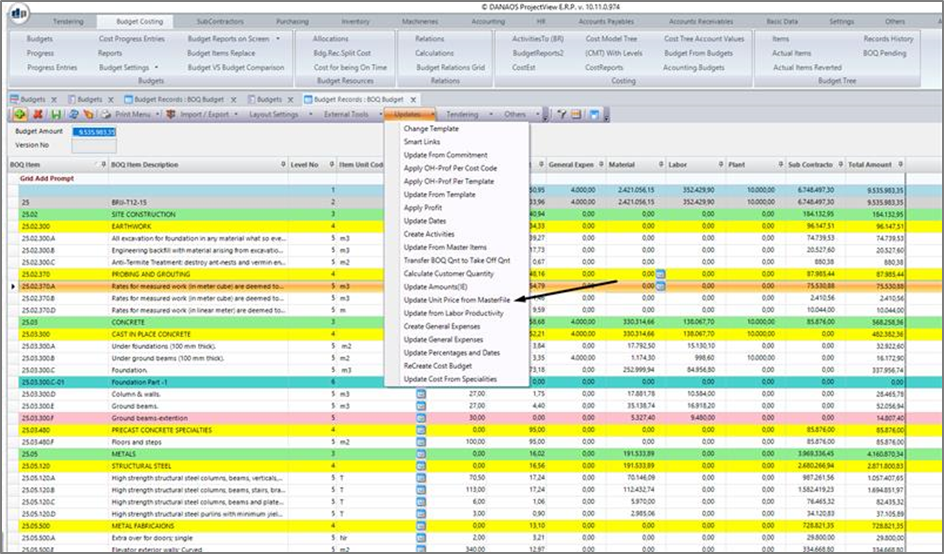
If the percentage is assigned to a higher level BoQ Line, it is feasible to apply it to all the lower-level lines by double clicking on the selected overhead/profit/risk.
6 Calculating Selling Prices
Once the BoQ is finalised and is ready to be sent to the Client, it is time to apply the selling prices including the Overhead, Risk, and Profit. This can be done by simply clicking on the “Tendering” option in the top of the Budget screen and then clicking on “Tender it”
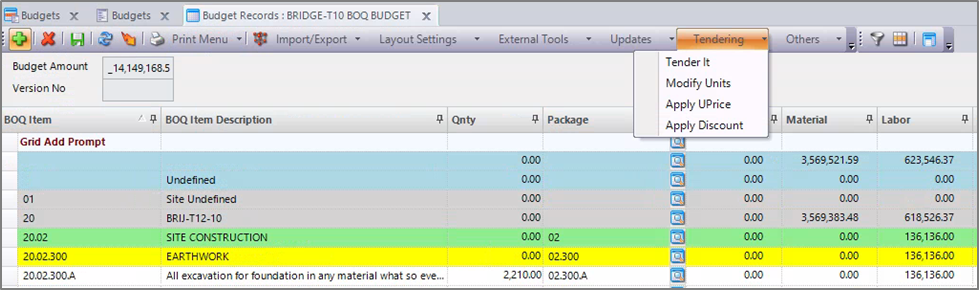
System calculate the selling Unit Price and the Selling amount for each BOQ line and summarize on the upper levels the total selling amounts.
6.1 Updating the Original excel with Selling Prices
After calculating the selling prices for the BoQ User is able to export from the Budget Analysis tab with only the selling prices by filtering the columns you would like to export to Excel.
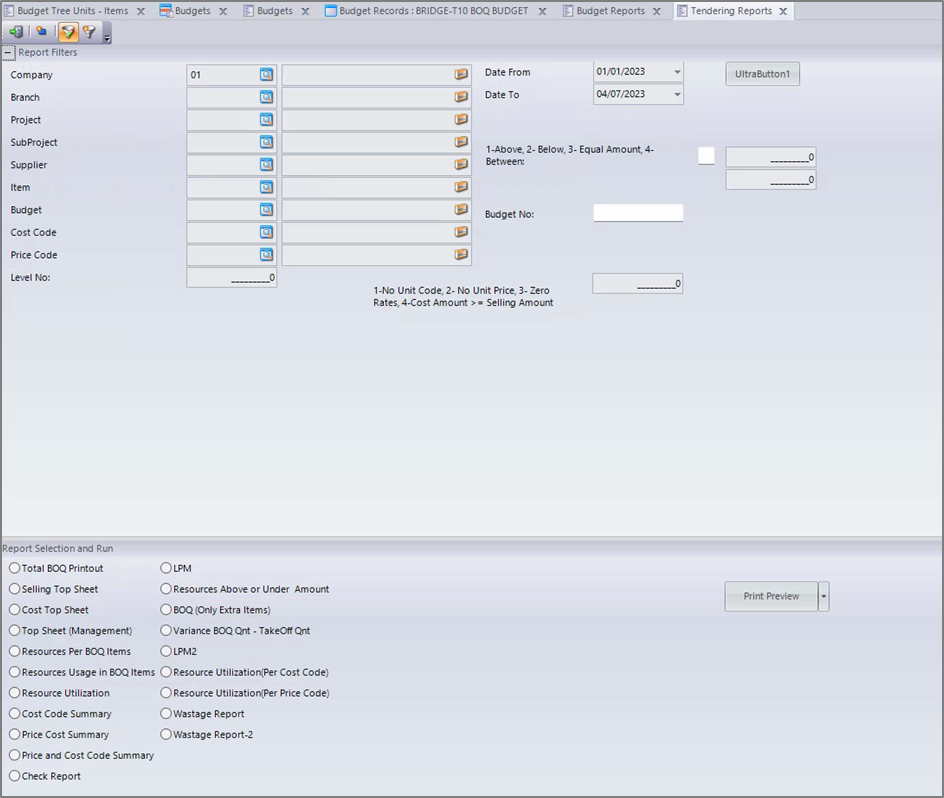
7 Tendering Reports
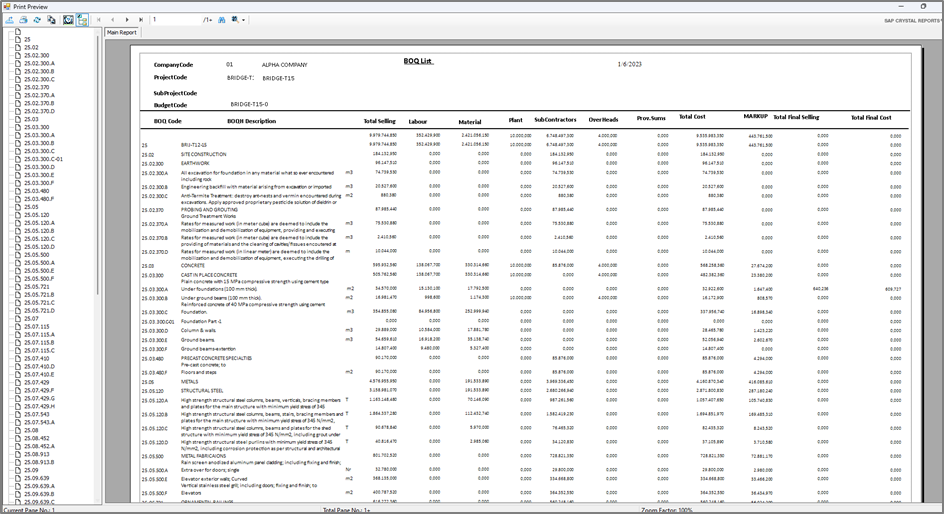
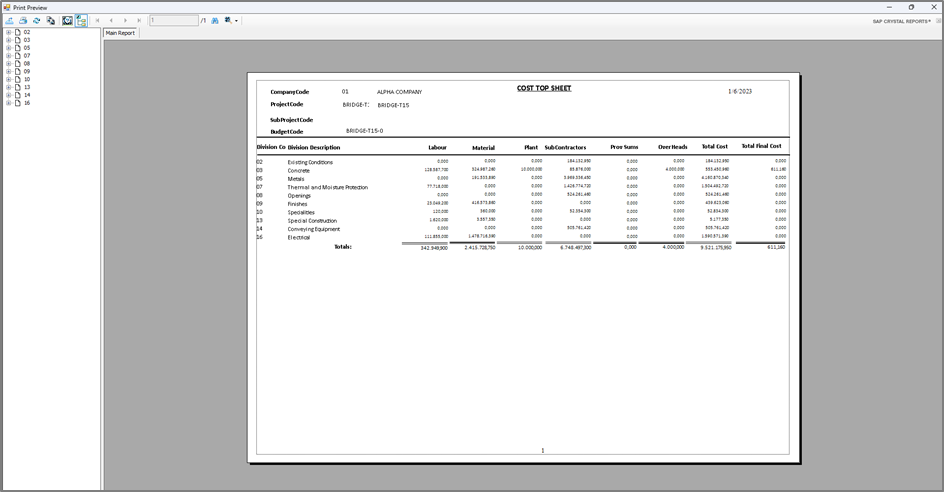
There is a wide variation of reports after the BoQ has been finalised.
Key Features and Functionalities Presented
| No. | Features and Functionalities | Yes/No |
| 1 | Formatting Excel to be easily Import in ProjectVIEW ERP | |
| 2 | Importing Excel in ProjectVIEW ERP | |
| 3 | Assigning Resources | |
| 4 | Assigning Divisions, Packages | |
| 5 | Creating Templates (Cost Sheets) | |
| 6 | Applying Templates | |
| 7 | Calculating Tendering Cost | |
| 8 | What-if Scenarios | |
| 9 | Update Tendering with Unit Price from Items Master File | |
| 10 | Requesting Updated Prices from Suppliers via Procurement | |
| 11 | Update Tendering with Unit Prices from Commitment | |
| 12 | Applying Overheads, Risk , Profit | |
| 13 | Calculating Selling Prices | |
| 14 | Updating the Original excel with Selling Prices | |
| 15 | Tendering Reports |

0 Comments