
Blueprint – 03. Subcontractors
General Glossary
| No. | Term | Explanation |
| 1 | QNT | Quantity |
| 2 | SIR | Site Item Request |
| 3 | RFQ | Request For Quotation |
| 4 | BOQ | Bill Of Quantities |
| 5 | QNT | Quantity |
| 7 | WBS | Work Breakdown Structure |
1 Create Subcontractors Contracts (From Orders)
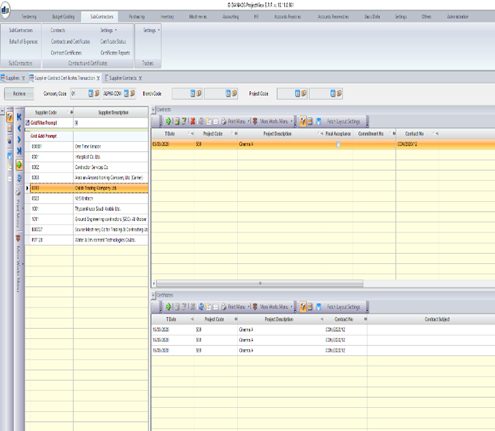
The user can create many contracts for different projects, for different subcontractors and have them organized under one screen.
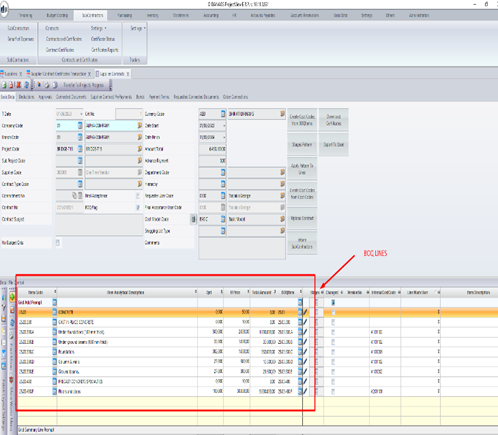
The system also provides the user the ability to create the contract by fetching the BOQ lines from an order.
2 Apply Payment Terms
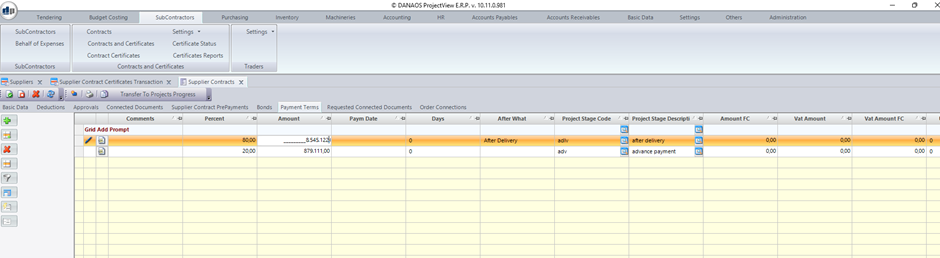
After the contract has been created the user can apply different payment terms for this contract such us advance payment , payment upon delivery , instalments etc. This can be done by either defining the number of days after delivery for the payment or the exact date.
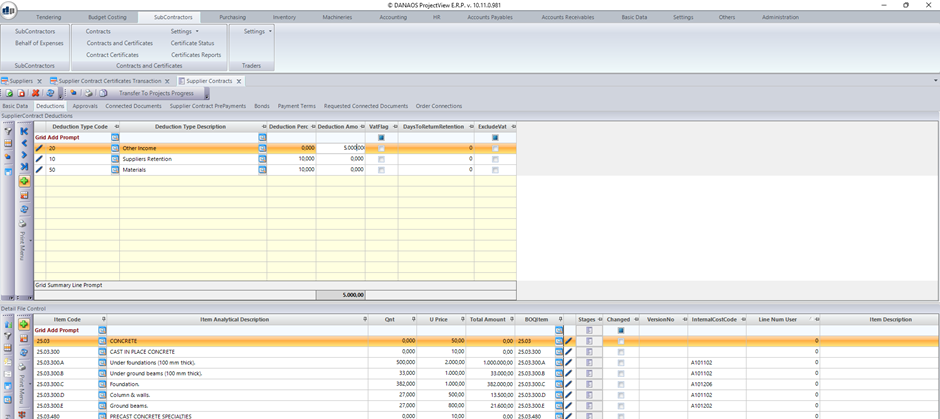
3 Apply Retentions – Deductions
After the contract has been created the user can apply different retentions-deductions types for this contract such us advance payment recovery, supplier retention etc. . The user can either assign a percentage so that the system calculates the amount based on the amount total of the contract or a fixed amount. Then this amount will be automatically deducted from the upcoming certifications.
4 Create Subcontractors Certifications
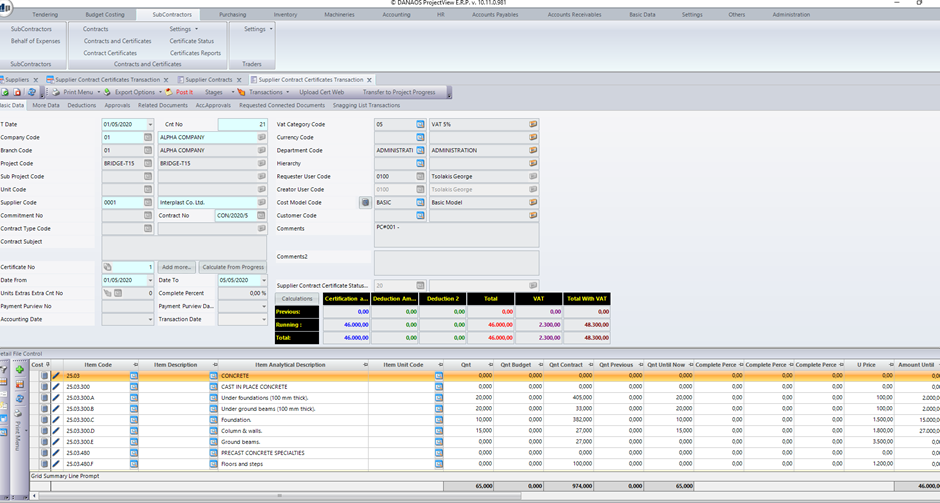
After the contract has been created the user can create the certification.
At the certification the system can provide information about the amount of the certification, the QNT that has been used during this period of time , the previous amount , the total previous amount and the amount of deductions of the retentions.
5 Select and Apply on Behalf of Subcontract Expenses to Certification
The user can create a general expense for a subcontractor through the general expenses form from the accounting module. The needed fields are the project, the transaction type, the document type , the supplier code and the amount.
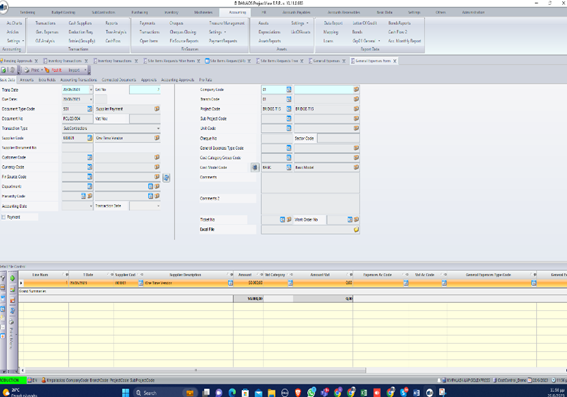
This way the user creates the expense that is requested for the certification.
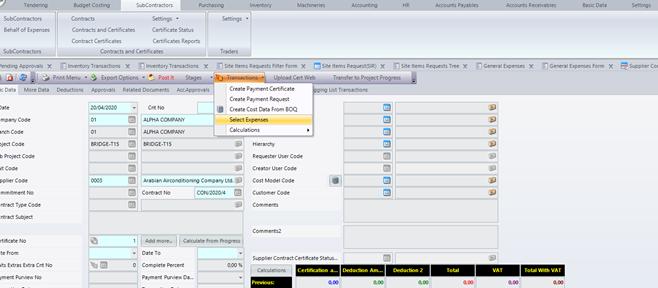
This expense amount will be deducted from the chosen certification.
In order to do this, the user has to select the desired certification and using the “transaction” button, user then select this expense by pressing the “select expenses” .
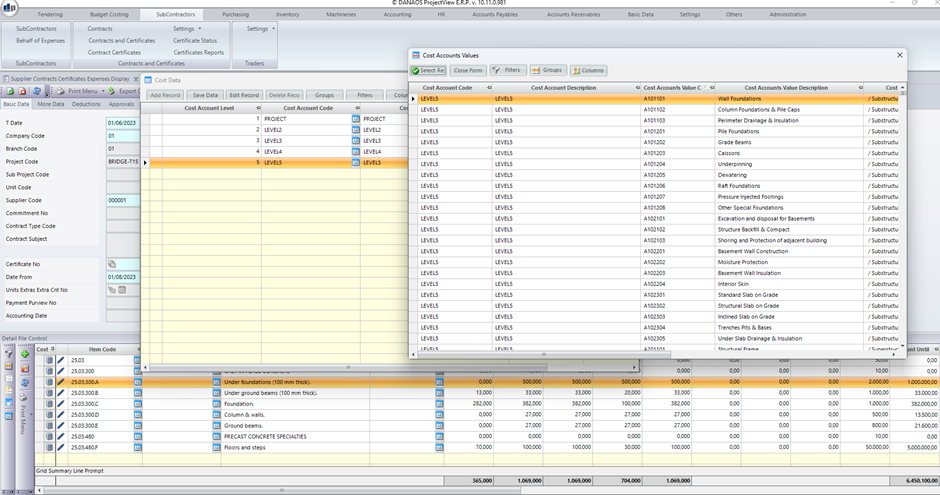
6 Apply Cost Codes to Certifications
After the certification has been created the user can apply cost codes at the certification lines. By doing this the cost will be transferred to cost budget and the user will be able to see it at the budget vs cost report.
7 Create Accounting Entry from Subcontractor Certification
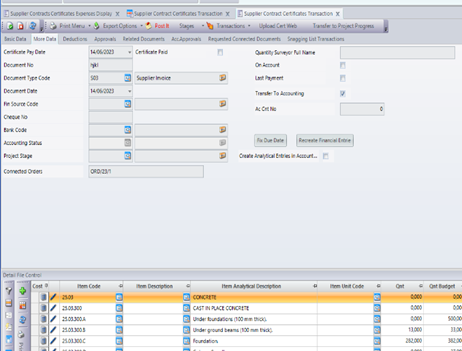
For every certification, the system provides user the ability to prepare the accounting entry.
Once the user has set up the correct AC code at the supplier menu the system will keep this information stored and use it every time to create the accounting entry.
Users just need to click “transfer to accounting” at more data and assign certificate date, document no and document type code.
Finally users can print by selecting “print” / “print accounting entry”
Key Features and Functionalities Presented
| No. | Features and Functionalities | Yes/No |
| 1 | Create Subcontractors Contracts (From Orders) | |
| 2 | Apply Payment Terms | |
| 3 | Apply Retentions – Deductions | |
| 4 | Create Subcontractors Certifications | |
| 5 | Select and Apply on Behalf of Subcontract. Expenses to Certification | |
| 6 | Apply Cost Codes to Certifications | |
| 7 | Create Accounting Entry from Subcontractor Certification |

0 Comments